How to Never Miss an Important Email Again
The family inbox is a chaos zone. Here's a practical email management system for parents that ensures nothing important ever falls through the cracks.
It's Wednesday evening and you've just remembered: the permission slip for Emma's school trip was due today. You saw the email last week. You meant to deal with it. You opened it, thought "I'll sort that later," and it disappeared into the scroll.
Sound familiar? You're not disorganised. You're just using a system that wasn't built for family life.
TL;DR: Email wasn't designed for family logistics — but it's where most of your important family communications land. This article shares a practical, five-step email management system for parents that ensures nothing important falls through the cracks, even when your inbox has 200 unread messages.
Why Email Management Is Genuinely Harder for Parents
Email was designed for work correspondence. But for modern families, it's become the primary channel for everything: school communications, GP appointment reminders, club schedules, sports fixtures, birthday party invitations, council notices, and an endless stream of admin that never quite stops.
Research by Radicati Group suggests the average person receives over 100 emails per day. For busy parents managing both work and family email — often in the same inbox — that volume is genuinely overwhelming.
The core problem isn't volume, though. It's that email as a format doesn't distinguish between "read and done" and "read but still needs action." Everything looks the same in your inbox, and the important things get buried in the noise.
A Simple Email Management System for Parents
You don't need a complex productivity method to fix this. You need five habits that work together.
Step 1: Create a "Family Action" Label
In Gmail, create a label called "Family Action." Any email that requires a response, a form submission, a payment, or a reply gets this label immediately when you read it. Don't deliberate — if action is needed, label it.
This one habit transforms your inbox from a graveyard of forgotten actions into a clear signal system. Your "Family Action" label becomes your real family to-do list.
How to create a Gmail label:
- Open Gmail on desktop
- Click the + next to "Labels" in the left sidebar
- Name it "Family Action" and choose a colour (red or orange works well for visibility)
- Apply it with one click whenever you read an email that needs action
💡 Quick Tip: Orbitra's AI automatically spots action items in your Gmail — no manual labelling required. Tasks just appear in your family plan, with deadlines attached. Try it free →
Step 2: Process, Don't Just Read
Here's the mindset shift that makes everything else work: when you open an email, make a decision immediately.
- Needs action? → Label it "Family Action" and leave it in your inbox
- No action needed? → Archive it immediately
- Can deal with it in under 2 minutes? → Do it now, then archive
Never leave emails you've already read sitting in your main inbox without being labelled. They create cognitive clutter — a constant low-level anxiety about things you might be forgetting — without actually reminding you of anything.
This is especially important for school emails, which often contain time-sensitive information buried in long newsletters. Read them with a decision-making mindset: label it or archive it, every time.
Step 3: Separate School Emails from Everything Else
School communications deserve their own strategy, because they arrive in high volume and often have unpredictable urgency. A school email might be a general newsletter (low urgency, batch later) or a last-minute change to pick-up arrangements (very high urgency, deal with now).
Create a sub-label for each child's school and set up a Gmail filter so emails from that domain are automatically tagged. Then build two simple habits:
- Monday morning: Review the school label for the week's commitments and upcoming deadlines
- As they arrive: Apply "Family Action" to anything requiring a response; ignore everything else until your next Monday review
This means you're processing school emails deliberately and in batches — not reactively every time one lands in your inbox.
Step 4: Use AI to Extract the Actions Automatically
Even with a good label system, you're still manually processing every email — reading it, identifying what needs to happen, and creating a task or calendar entry somewhere else. That's still mental overhead.
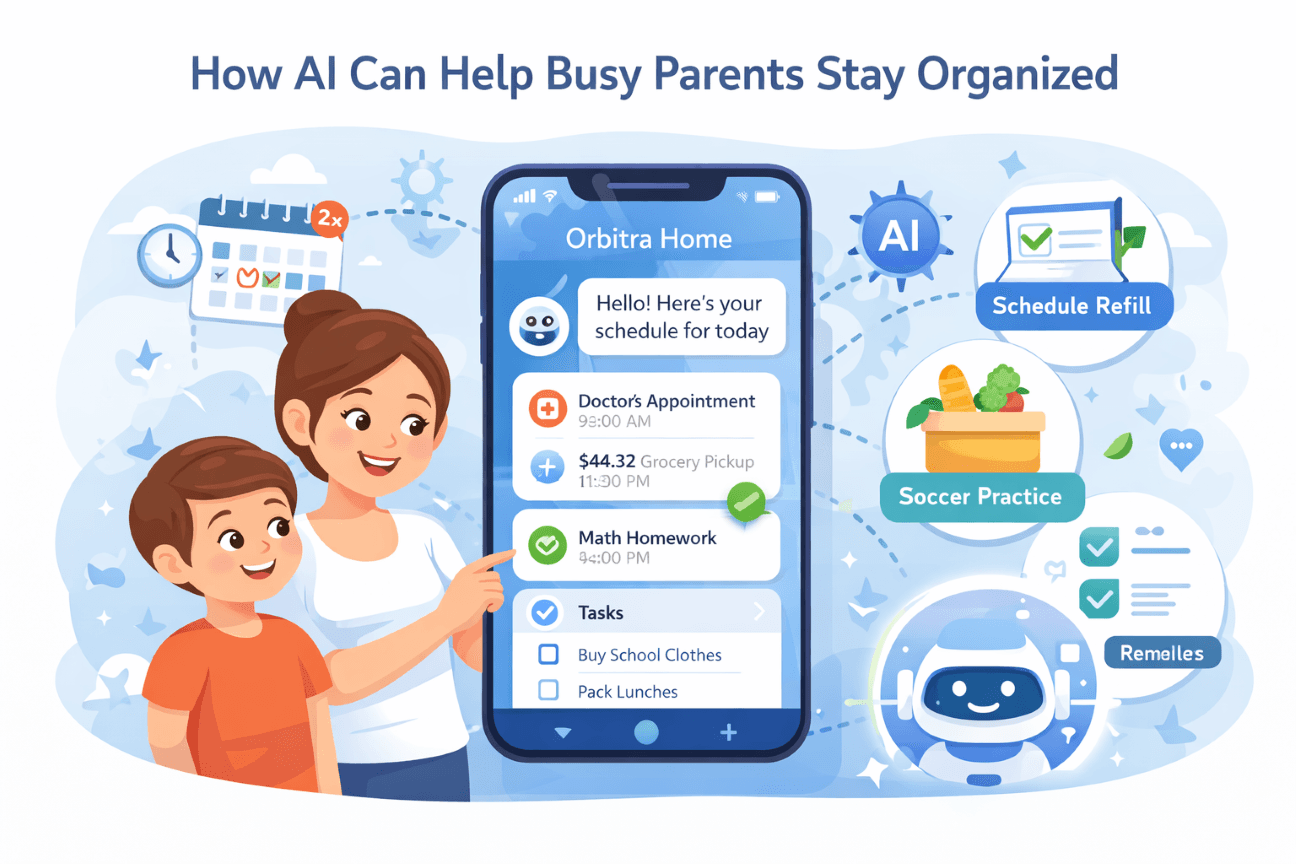
This is where email management for parents gets genuinely easier with AI. Tools like Orbitra Home can read your labelled emails and automatically extract the specific action items buried in them.
Instead of mentally parsing "I need to sign the form, return it by Friday, and also pay the £5 deposit," those three tasks appear in your family to-do list automatically, with the deadline already attached. You read the email once. The system handles the rest.
Step 5: Do a Weekly 5-Minute Review
Every Sunday evening, spend five minutes with your "Family Action" label. Clear anything that's been handled. Flag anything urgent for the week ahead. Move recurring tasks into your family calendar.
This weekly review is the safety net. Even if a mid-week email slips through without being properly labelled, the Sunday review catches it before it becomes a problem.
What to Do with the Backlog
If your inbox already has hundreds of unread emails, don't try to process them all at once. That way lies an entire lost weekend and very little progress.
Instead: declare email bankruptcy on everything older than 30 days. Archive the lot. Search for anything urgent if you need to. Start fresh with your new system from today.
If something important was buried in that backlog and genuinely needed action, you'll hear about it. But the reality is, most of it was newsletters, notifications, and things that resolved themselves while you weren't looking.
The Goal: Confidence, Not Zero
The goal of this system isn't inbox zero — that's a nice idea but not the point. The goal is confidence: the knowledge that nothing important is falling through the cracks, even when your inbox has 200 unread messages.
With a clear label system, a school email filter, and AI task extraction, you can genuinely relax about your inbox. The important things are surfaced. The actions are tracked. Your brain doesn't have to hold it all anymore.
And that freed-up mental space? You get to spend it on something better than worrying about permission slips.
Ready to Stop Missing Important Emails?
Orbitra connects to your Gmail and automatically turns important family emails into tasks and calendar entries — no labelling required. It's email management for parents that works in the background while you get on with life.
✨ What you get:
- AI task extraction from Gmail
- Unified family calendar
- Personalised daily digest
- Family chat assistant
- 7-day free trial, no credit card required
Get Orbitra Free | Learn More →
You Might Also Like
- 10 Ways to Reduce Mental Load as a Parent - How to share the invisible work of running a family more equally
- How AI Can Help Busy Parents Stay Organised - What AI can genuinely do for your family in practical, everyday terms
- Work-Life Balance for Dual-Income Families - Seven strategies for families where both parents work full-time
Found this helpful? Share it:
Don't miss our next post
Get family productivity tips delivered weekly
We respect your privacy. Unsubscribe anytime.